 Unicorns Can Talk
 guide
Version 0.1.1. Everything the program does, every setting, and how it works.
Getting started
Install
UnicornsCanTalkSetup-0.1.1.exe
(no administrator needed), or unzip the portable zip anywhere and run
UnicornsCanTalk.exe. If SmartScreen warns, choose More info, then Run anyway.The first start
- Welcome. Two questions: start Unicorns Can Talk when you sign in, and start listening as soon as it opens. On a Mac it also asks for the microphone and for Accessibility (System Settings > Privacy & Security > Accessibility: switch on Unicorns Can Talk). Without Accessibility a Mac lets no program type into another, and the widget says so.
- Model check. It measures the speech models on your computer, and if you read six short sentences aloud, how accurately each one hears you, then picks the most accurate one that is fast enough. You can skip it; the recommended model is used.
- Download. The chosen model is downloaded once (about 660 MB for the recommended one). From then on everything works offline.
The unicorn widget appears near the edge of the screen, and a little unicorn in the system tray (Windows) or menu bar (Mac). Right-click either for the menu.
Dictating
Click in the program you want to write in, then click the widget (or say your wake phrase) and speak. Words are typed as you speak: the newest one or two are held back for a moment until the recogniser is sure of them. Click the widget again to pause. The widget never takes the cursor away from your document, so you can click it at any time.
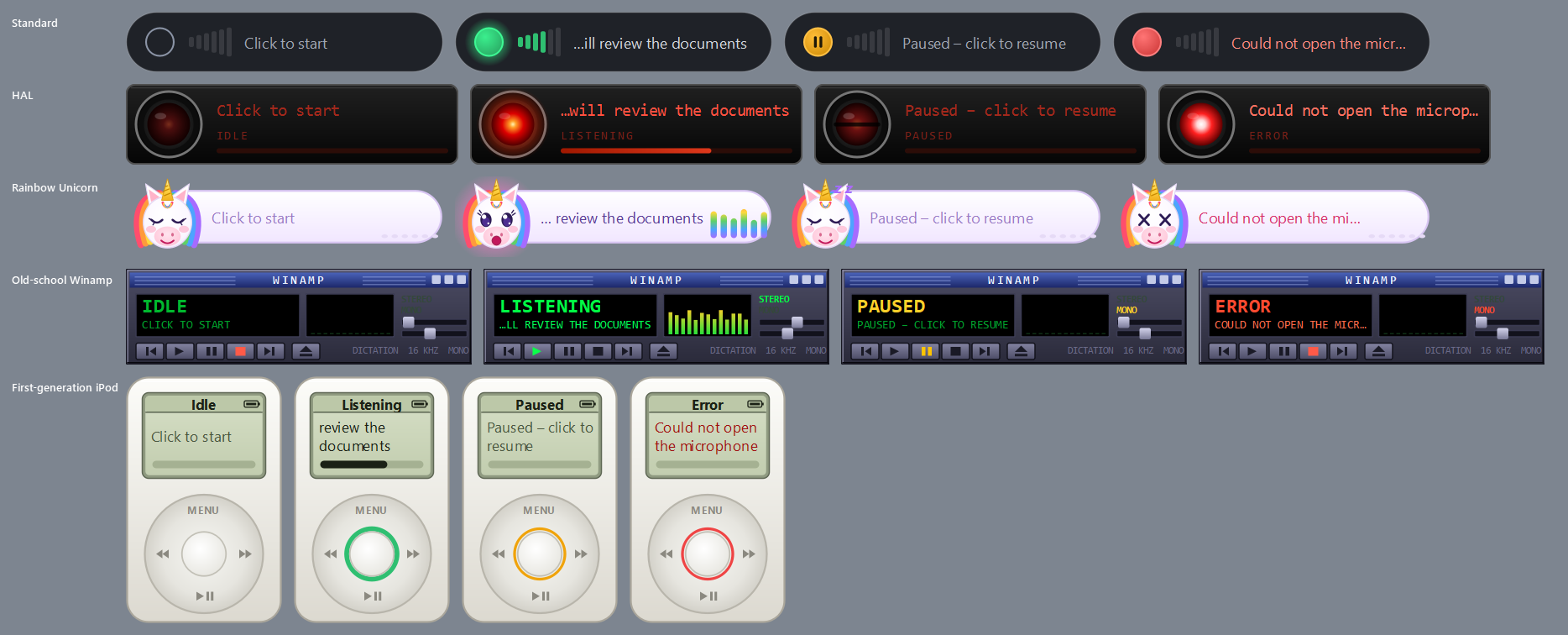
- Idle: not listening
- Listening
- Paused
- Busy (proofreading, finishing a phrase)
- Loading the model
- Error (the widget says what)
Colours of the Standard skin; other skins show the same states
Drag the widget to move it; it remembers where. Right-click it for the menu: Dictation box, Transcribe a recording…, Settings…, About and Quit. Only one copy of Unicorns Can Talk runs at a time.
Speak in phrases, the way you would dictate to a person. Commands are recognised when you say them as their own phrase, with a short pause before and after, so “scratch that idea” in the middle of a sentence is typed as words.
Spoken punctuation
By default you say the punctuation (Settings > General > Punctuation: “Say punctuation aloud”). Capitals after a full stop, spaces, and no space before a comma are handled for you. To type one of these words as a word, say literal first: “literal comma”. The other choice, automatic punctuation, lets the recogniser punctuate for you.
| Say | Types |
|---|---|
| “full stop” “fullstop” | . |
| “comma” | , |
| “question mark” | ? |
| “exclamation mark” “exclamation point” | ! |
| “colon” | : |
| “semicolon” | ; |
| “new line” “newline” | new line |
| “new paragraph” | new paragraph |
| “line break” | line break (Shift+Enter) |
| “page break” | page break |
| “tab key” | Tab |
| “bullet point” “bullet” | • |
| “ellipsis” “dot dot dot” | … |
| “em dash” | — |
| “en dash” | – |
| “slash” “forward slash” | / |
| “backslash” | \ |
| “underscore” | _ |
| “at sign” | @ |
| “ampersand” | & |
| “asterisk” | * |
| “plus sign” | + |
| “equals sign” | = |
| Say | Types |
|---|---|
| “hash sign” “hashtag” | # |
| “percent sign” | % |
| “degree sign” | ° |
| “section sign” | § |
| “paragraph sign” | ¶ |
| “rupee sign” | ₹ |
| “dollar sign” | $ |
| “pound sign” | £ |
| “euro sign” | € |
| “open square bracket” | [ |
| “close square bracket” | ] |
| “open brace” “open curly bracket” | { |
| “close brace” “close curly bracket” | } |
| “open quote” “open quotes” | " |
| “close quote” “close quotes” “end quote” | " |
| “open parenthesis” “open paren” “open bracket” | ( |
| “close parenthesis” “close paren” “close bracket” | ) |
| “hyphen” | - |
| “dash” | - |
| “no space” | joins the next word on with no space |
| “cap” | capitalises the next word |
| “all caps on” | CAPITALS until “all caps off” |
| “all caps off” | back to normal |
All of these can be changed or added to in Settings > Words > Spoken punctuation.
Numbers, money and spelling
- Numbers are written as digits (“twenty five” → 25) or, below a number you choose, as words. Digits are always used before units (“5 percent”, “3 km”) and after words like section, clause or page, and you can add your own such words.
- Digits spoken one at a time (“nine eight two two…”) are joined into one number.
- Layout: Western (1,234,567), Indian (12,34,567) or no grouping, the separator and decimal mark, from how many digits to group, and whether years are left alone.
- Money: “rupees one lakh” becomes ₹ 1 lakh (with or without a space after the symbol); other currencies can be added.
- Spelling: British or American, with your own exceptions and pairs.
- Vocabulary: your own replacements for names and terms the recogniser gets wrong.
All in Settings > Numbers and Settings > Words.
Voice commands
Every phrase below can be changed, added to or switched off in Settings > Voice commands, and each shortcut's keys too. Keys are stored the Windows way and pressed the Mac way on a Mac (Ctrl becomes ⌘, Home becomes ⌘←, and so on), so one settings folder works on both.
Correcting
| Say | What it does |
|---|---|
| “scratch that” | Removes what you said last (or cancels a selection made by “correct”). |
| “delete last word” “delete that word” | Deletes the last word you dictated. |
| “delete last sentence” “delete that sentence” | Deletes the last sentence you dictated. |
| “delete last paragraph” “delete that paragraph” | Deletes the last paragraph you dictated. |
| “undo that” “undo” | The program's own Undo. |
| “redo that” “redo” | The program's own Redo. |
| “select …” | Selects those words in what you dictated recently; say the replacement next. |
| “correct …” | Like select: selects the words, then whatever you say replaces them. |
| “capitalize that” “capitalise that” | Capitalises the last word. |
| “uppercase that” “all caps that” | Makes the last word ALL CAPITALS. |
| “lowercase that” | Makes the last word lower case. |
Moving the cursor
| Say | What it does |
|---|---|
| “go to end of line” “go to the end of the line” “go to line end” “end of line” | Moves the cursor to the end of the line. |
| “go to start of line” “go to beginning of line” “go to the start of the line” “go to the beginning of the line” “go to line start” “start of line” “beginning of line” | Moves the cursor to the start of the line. |
| “go to end of document” “go to the end of the document” “go to document end” “end of document” | Moves the cursor to the end of the document. |
| “go to start of document” “go to beginning of document” “go to the start of the document” “go to the top of the document” “go to document start” “start of document” “top of document” | Moves the cursor to the start of the document. |
Dictation and the dictation box
| Say | What it does |
|---|---|
| “pause dictation” | Stops typing until you say “resume dictation” (it keeps listening). |
| “resume dictation” “start dictation” | Starts typing again after a pause. |
| “stop dictation” | Turns dictation off (with wake words on, it goes back to waiting). |
| “open a dictation box” “open dictation box” | Opens the dictation box. |
| “close the dictation box” “close dictation box” | Closes the dictation box. |
| “paste the dictation box” “paste dictation box” | Pastes the box's text into the program in front. |
Proofreading (Word on Windows)
| Say | What it does |
|---|---|
| “proofread that” “proofread this” | Proofreads what you dictated since the last proofread (Word). |
| “undo proofread” “undo the proofread” | Puts back the text as it was before the proofread. |
| “clear highlights” “clear the highlights” | Removes the proofreading highlights. |
Shortcuts (any program)
| Say | What it does | Windows | Mac |
|---|---|---|---|
| “select all” “select everything” | Selects everything. | Ctrl+A | ⌘A |
| “select line” “select this line” | Selects the line the cursor is on. | Home, Shift+End | ⌘←, ⇧⌘→ |
| “copy to clipboard” “copy that” | Copies the selection. | Ctrl+C | ⌘C |
| “cut to clipboard” “cut that” | Cuts the selection. | Ctrl+X | ⌘X |
| “paste from clipboard” “paste that” | Pastes. | Ctrl+V | ⌘V |
| “delete selection” “delete the selection” | Deletes the selection. | Delete | Forward Delete |
| “save document” “save the document” | Saves the document. | Ctrl+S | ⌘S |
| “find in document” “open find” | Opens the program's Find. | Ctrl+F | ⌘F |
| “toggle bold” “bold that” | Bold on or off. | Ctrl+B | ⌘B |
| “toggle italic” “italic that” | Italic on or off. | Ctrl+I | ⌘I |
| “toggle underline” “underline that” | Underline on or off. | Ctrl+U | ⌘U |
| “page up” | Scrolls up a page. | Page Up | Page Up |
| “page down” | Scrolls down a page. | Page Down | Page Down |
Word (Windows)
These act only when Microsoft Word is the program in front; anywhere else the words are simply typed.
| Say | What it does |
|---|---|
| “heading one” “heading 1” | Heading 1 style for this paragraph. |
| “heading two” “heading 2” | Heading 2 style. |
| “heading three” “heading 3” | Heading 3 style. |
| “title style” | Title style. |
| “normal style” | Back to Normal style. |
| “font size …” | Sets the font size: “font size twelve”. |
| “bigger font” “increase font size” | One size bigger. |
| “smaller font” “decrease font size” | One size smaller. |
| “align left” | Aligns the paragraph left. |
| “align centre” “align center” | Centres the paragraph. |
| “align right” | Aligns the paragraph right. |
| “justify text” | Justifies the paragraph. |
| “bullet list” “bulleted list” | Bulleted list on or off. |
| “numbered list” | Numbered list on or off. |
| “clear formatting” | Clears the formatting of the selection. |
| “insert table …” | Inserts a table: “insert table three by four”. |
| “go to page …” | Goes to a page: “go to page five”. |
| “find text …” | Selects the next place the words appear: “find text hearing date”. |
| “replace text …” | Replaces everywhere: “replace text plaintiff with petitioner”. |
| “select this paragraph” | Selects the paragraph the cursor is in. |
| “select this sentence” | Selects the sentence the cursor is in. |
Your own commands and text blocks
In Settings > Voice commands you can add a command that types a snippet, presses keys (one combination after another, like Alt+N, D) or does both. Settings > Text blocks holds longer texts, such as a standard letter or a signature, of any length (pasted in one go), each with the phrases that insert it and how it joins the text around it: after a space, as a new paragraph, or exactly where the cursor is. “Scratch that” takes a block back out.
Wake words
Switch on Wake words in Settings > General to start dictating hands-free. While dictation is off the microphone stays open only to hear your phrases (“start dictation”, “hey dictation”, or your own); nothing is typed or kept. Say one on its own, with a pause either side. “Stop dictation” goes back to waiting. The widget shows a dim ring while it waits.
The dictation box
Some programs and web pages do not cope well with typed dictation. Say “open a dictation box” (or choose it from the menu): a small window takes your dictation instead, with every editing command working inside it. Its Paste button, or “paste the dictation box”, pastes the text into the program in front, then clears the box if you like. It never takes the cursor from your program.
Transcribing a recording
Menu > Transcribe a recording…: choose an audio or video file (wav, mp3, m4a, flac, ogg, opus, wma, mp4 and more), up to two hours long, and where the text should go: a Markdown file, a Word document, or the dictation box. Progress is shown; Cancel keeps what was done so far. The recogniser's own punctuation is used (people in a meeting do not say “full stop”), unless you tick that the speaker dictated it. On a fast computer two hours take about three minutes.
Paragraphs start where the speaker paused for a while (2 seconds by default; you choose it) at the end of a sentence, so a thinking pause in the middle of a sentence does not split it. Very long paragraphs are also broken after about 90 words.
Proofreading the transcript (Windows, with the proofreading model downloaded): choose a level in the same window and the local language model corrects the text before it is saved, with the same instructions and safeguards as in Word. The file notes how many changes were made. Cancel while it proofreads keeps the rest as transcribed.
Proofreading (Word on Windows)
Off by default. When you pause or stop dictating (or say “proofread that”), a language model on your computer reads what you dictated in Word and fixes it, in one sweep, so it never fights your cursor while you dictate. Choose how much it may change:
- Punctuation: commas, full stops, capitals and spaces only; no word changes.
- Grammar: also agreement, tense, articles, misheard words and stumbles.
- Structure: also run-on sentences and awkward phrasing.
- Custom: your own instructions, with your own limit on how much may change.
Edits are shown as tracked changes (recommended: accept or reject each one), as highlights, or applied silently. “Undo proofread” and “clear highlights” do what they say. Answers that change too much, change numbers or add chatter are refused and the text is left as dictated. You can read and edit what the model is told for each level, and try it on sample text, in Settings > Proofreading. The model is downloaded only when you switch proofreading on:
| Proofreading model | Download | Licence |
|---|---|---|
| Qwen2.5 1.5B (small, fast) | 940 MB | Apache-2.0 |
| Qwen2.5 3B (balanced) | 1,840 MB | Qwen Research License (non-commercial) |
| Qwen2.5 7B (most careful, slow without a GPU) | 4,466 MB | Apache-2.0 |
How careful they are, measured on 24 test texts (including some that are already correct): at levels 1 and 2 the 3B model made 4 unwanted changes and the 7B model 1, out of about 70 corrections needed. Choose the 7B if you have 16 GB of memory and don't mind waiting twice as long. Whatever the model, numbers, currencies, titles and times are never changed, and tracked changes let you reject any edit.
Skins
Settings > Appearance changes how the widget looks: Standard, HAL (a red eye that
glows with your voice), Rainbow Unicorn (eyes and mouth that move as you speak),
Old-school Winamp and First-generation iPod. Every skin shows every state. Make your
own from shapes and pictures in a skin.json file, and add it from a folder or a .zip.
Settings, page by page
Right-click the widget or the tray/menu bar unicorn, then Settings…. Changes apply when you press OK; nothing is saved half-way.
| Page | What you set there |
|---|---|
| General | Punctuation (say it, or automatic); British or American spelling; microphone; speech model and “Check this computer and pick the best model…”; type words as you speak; start listening when it opens; start at sign-in/login; wake words and phrases; whether commands like “new line” need a pause; on a Mac, “Mac permissions…”. |
| Numbers | Words or digits, units and section words, digits spoken one at a time, digit grouping and separators, percent, currencies. |
| Words | Spoken punctuation (change, add, reset), your vocabulary, and spelling exceptions. |
| Voice commands | Every built-in phrase (change, switch off, reset), the keys of each shortcut, your own commands, and a test box that shows what a phrase would do. |
| Text blocks | Your blocks of text, the phrases that insert them, and how they join; load one from a text file. |
| Proofreading | Level, how changes are shown, automatic on pause, Oxford comma, model, the instructions for each level, and a try-it box. |
| Appearance | The widget's skin, with previews; add or remove your own. |
| Try it | Type what the recogniser might hear and see exactly what would be typed. |
| Advanced | Recognition timing (how often it re-checks, how many words it holds back, the pause that ends a phrase, the longest phrase), a backup model, a timing log (never your words unless you ask), and the settings folder. |
Speech models
Choose in Settings > General. The model check measures them on your own computer. Models are downloaded once and checked against a fingerprint.
| Speech model | Download | When |
|---|---|---|
| Whisper base.en | 150 MB | Fastest, for older computers; less accurate. |
| Whisper small.en | 480 MB | For typical laptops without a strong processor. |
| NVIDIA Parakeet-TDT 0.6B v2 | 660 MB | Recommended on most computers, Macs included: fast and the most accurate in our tests. |
| Whisper distil-large-v3 | 1,500 MB | Needs a graphics card (or Apple Silicon with MLX from source). |
| Whisper large-v3-turbo | 1,600 MB | Recommended with an NVIDIA graphics card of 6 GB or more. |
Privacy and your files
Your voice is turned into text on your computer and is never recorded, stored or sent. The internet is used only to download models you choose. Logs, if switched on, hold timings and lengths, not words, unless you also tick “include the words”.
| Windows | Mac | |
|---|---|---|
| Settings, commands, skins, models, logs | %APPDATA%\DictationApp | ~/Library/Application Support/DictationApp |
| Start at sign-in | a Run entry for your user | a LaunchAgent in ~/Library/LaunchAgents |
The settings files are the same on both, so you can copy the folder from one computer to the other. Uninstalling on Windows asks before deleting this folder (the answer is No unless you say so).
How it works
- Listening. The microphone is read in 30 ms pieces. A small neural speech detector (Silero) decides when you start and stop speaking.
- Recognising, live. While you speak, the growing phrase is re-recognised about once a second, and words are typed as soon as they stop changing; the newest are held back a little. This gives a word-error rate of about 3% with words appearing around 1.4 s after you say them.
- Commands or text. A finished phrase is first compared with the commands (whole phrase, tolerant of small mishearings). Otherwise it goes through the text rules in a fixed order: spelling, your vocabulary, numbers and money, then punctuation, spacing and capitals.
- Typing safely. Text is typed (or pasted, for long text) into the program in front. The app remembers what it typed and reads the two characters before the cursor, so it knows whether to add a space or a capital, and so “scratch that” deletes only what it typed, never your own writing.
How it was built
Unicorns Can Talk is written in Python, about 13,000 lines plus more than 900 automated tests, in small steps, each one tested in real use before the next. The layers:
In order
| Step | What it added |
|---|---|
| Benchmark | Speech models compared on the author's own recordings; Parakeet won on speed and accuracy. |
| Model management | A catalog, hardware detection, verified downloads. |
| Core loop and typing | Microphone to text to the document, pasted within two seconds. |
| Punctuation and numbers | Spoken punctuation, spacing and capitals, numbers, currency, spelling. |
| Streaming | Words typed as you speak; word errors from 11% down to about 3%. |
| Voice commands | Editing and moving by voice; mistaken commands in ordinary prose cut from 458 to 10 in 848 phrases. |
| Widget and settings | The floating widget that never steals focus, the tray and every setting in one window. |
| Model check, dictation box, wake words | Choosing the right model per computer, a box for awkward programs, hands-free start. |
| Proofreading and Word commands | A local language model and Word formatting by voice. |
| Transcription and skins | Recordings to documents; five skins and a skin format. |
| Name, licence, installer | Unicorns Can Talk, BSD licence, a Windows installer. |
| macOS | The Mac version: typing, permissions, login item, the .app and .dmg. |
Troubleshooting
- Nothing is typed (Mac). Switch on the app in System Settings > Privacy & Security > Accessibility. After installing a new version, switch it off and on again there.
- Capitals or words change by themselves (Mac). macOS can correct spelling and capitalise words in some programs after the text is typed. Switch off “Correct spelling automatically” and “Capitalise words automatically” in System Settings > Keyboard > Text Input > Edit.
- Nothing is heard. Check the microphone in Settings > General, and on a Mac in Privacy & Security > Microphone.
- It is slow. Run “Check this computer and pick the best model…” in Settings > General, or choose a smaller model.
- A word keeps coming out wrong. Add it to Settings > Words > Vocabulary.
- A command fires in the middle of a sentence. Settings > General: commands only at a pause; or change the command's phrase.
- Something else. Run the program with
--self-test: it checks everything it needs and says what is missing.